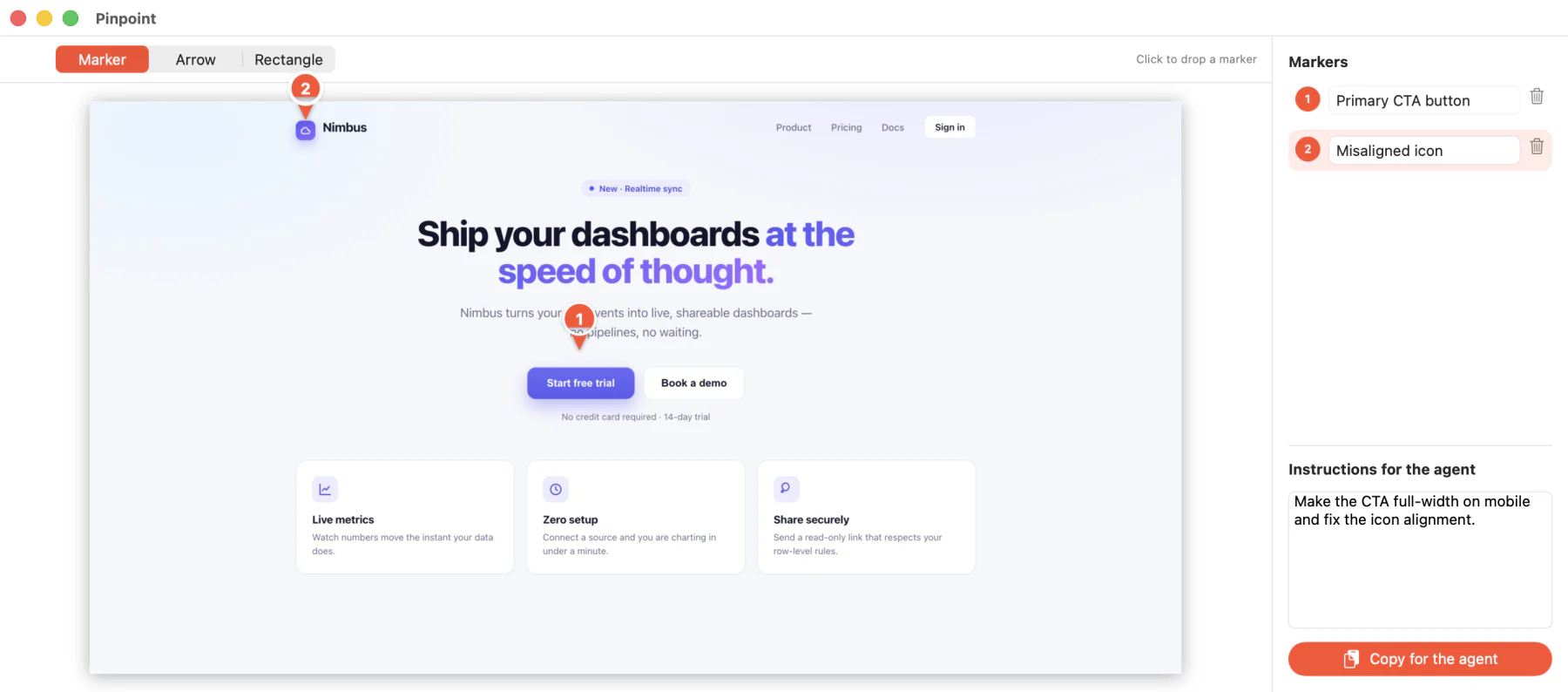
Capture your screen, drop numbered markers on what matters, and copy a ready-to-paste prompt for your AI agent — an annotated image plus instructions that reference every marker.
macOS 15+ · Apple Silicon & Intel
Editor — drop markers, write a note, copy for your agent
No round-trips, no describing pixels in words.
Press ⌘⇧1 and drag a rectangle. Native resolution, multi-display and Retina aware.
Click to place pins and add a note to each. Add arrows and rectangles for emphasis.
⌘C copies the annotated image and a structured text that references every marker.
Everything you need to point an agent at the right pixel.
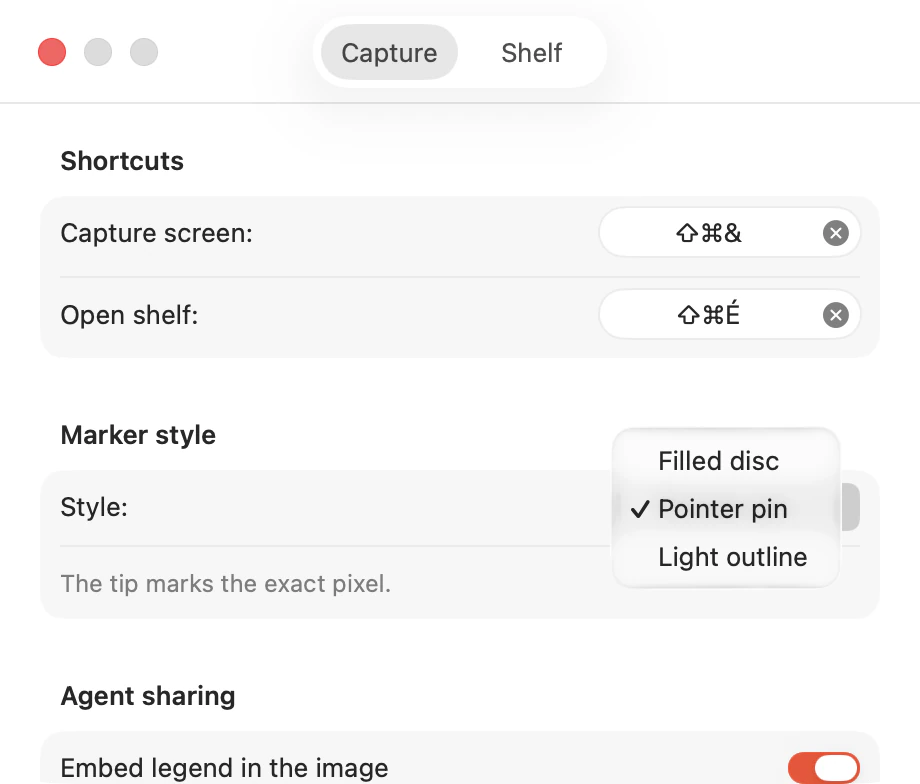
Ringed, numbered pins that stay legible on any background — in three styles.
Add visual emphasis right on top of your capture.
Optionally embed the marker descriptions and instructions into the image, so a single paste carries everything.
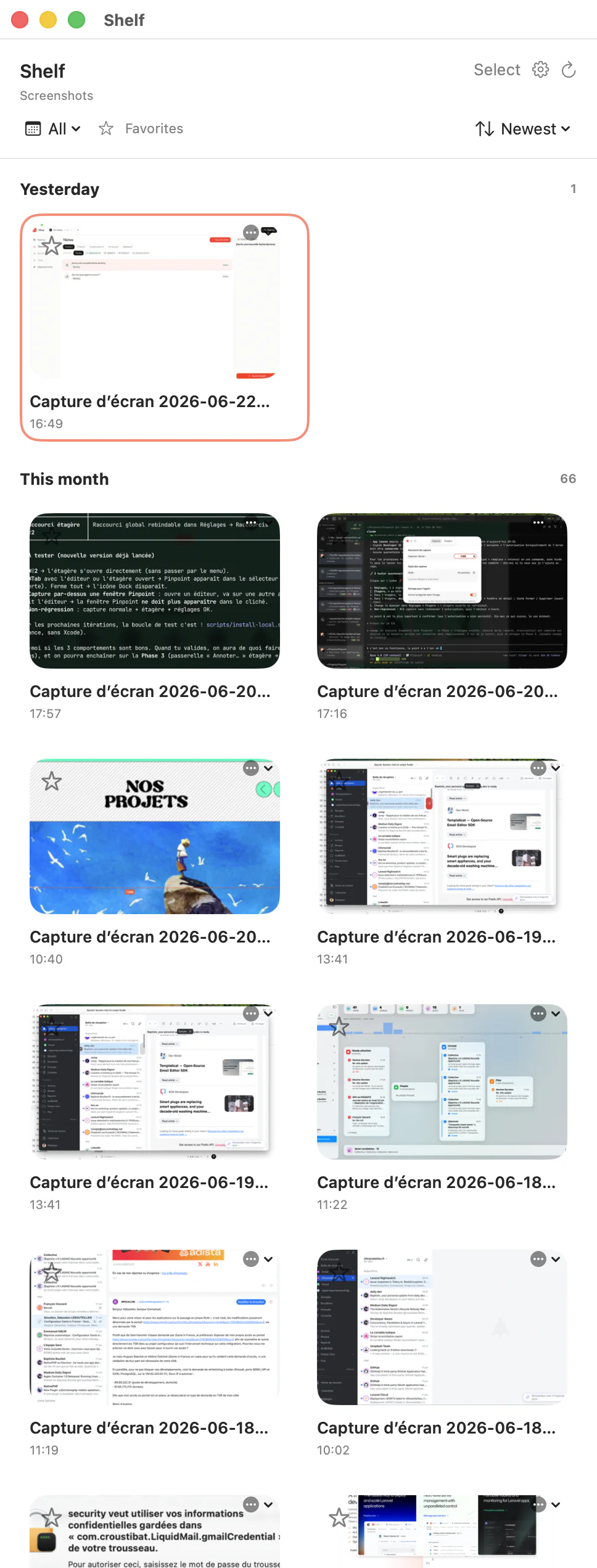
Browse, favorite and reopen your screenshots from a built-in library.
Capture or open the shelf from anywhere — fully rebindable.
SwiftUI + ScreenCaptureKit, living in your menu bar. Your captures never leave your Mac.
A native menu-bar companion — capture, organize, and tune it to the way you work.
Most chat UIs paste only the image and drop the clipboard text. Pinpoint can bake the legend into the picture — and always copies a structured prompt that an agent like Claude Code or Codex can parse: image size, each marker’s description and position, then your instructions.
# Annotated capture — 1280×800 px
An image is attached. Numbered (ringed) badges point to specific elements.
Markers (position in % of the image, top-left origin):
1. Primary CTA button · ~62 % × 48 %
2. Misaligned icon · ~12 % × 22 %
## Instructions
Make the CTA full-width on mobile and fix the icon alignment. Free and open source. Notarized and signed with a Developer ID.
macOS 15 or later · Apple Silicon & Intel